BUILT FOR TOURNAMENT FISHING. BUILT BY TOURNAMENT DIRECTORS.
How Your Phone Works on Tournament Day
PHONE GUIDE
Signal · Permissions · Storage · Battery
Print it and keep it in the boat. Read the steps here, or download the free PDF.
Jump to: Uploads & offline · Before you launch · Quick fixes · Prepare & get help
Phone Guide in the Boat

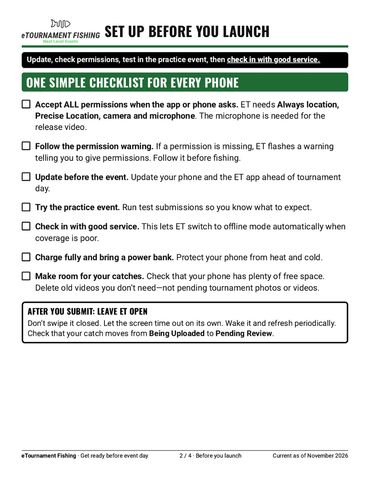
DON'T PUT YOUR PHONE IN AIRPLANE MODE.
Airplane mode cuts off the cellular data ET needs to send your catches.
Your phone, your carrier and eTournament Fishing work together. Weak service, a full phone or a battery-saving setting can interrupt that teamwork. These checks help you get back to fishing. If they don't help, your director and ET support are here for you.
A real tournament measurement

A real tournament measurement photo — what your phone captures on the water.
Download the printable guide
Four US Letter pages. Print it, fold it, and keep it in the boat.
Current as of November 2026.
How Your Phone Works on Tournament Day (pdf)
DownloadPreview the Phone Guide
Signal and uploads

Weak data can delay or pause catch uploads.
What happens when signal is weak?
1. Harder to send. Photos and video need a working internet connection—not just signal bars.
2. More phone work. The radio may use more power and retry data. Uploads take longer; battery drops faster.
3. Work can pause. A connection can time out. Background and battery-saving rules can delay or stop work.
Moving between towers, bands or 5G/LTE can change speeds or briefly disrupt a connection. A busy tower can be slow even with strong bars. A working call or text does not prove there is enough data service for a video upload.
"BEING UPLOADED"? REFRESH.
1. Leave ET open. Don't swipe it closed or force-stop it. Let the screen time out on its own.
2. Refresh periodically. Tap refresh (top right), pull down to refresh, or tap the green virtual livewell button. Paused submissions pick back up.
3. Check your status. In your virtual livewell, red under "Being Uploaded" means still sending. When finished, it moves to "Pending Review" with a green tint—it made it. Wake the screen and refresh to check.
Refresh is not stronger service. Refresh can resume the upload process, but it cannot create coverage or remove a carrier speed limit. Give the connection time; don't tap continuously.
OFFLINE IS NOT LOST
Check in while you have good service. If you checked in, ET turns on offline mode automatically when coverage is poor. Submissions save on your phone and upload once you're back in coverage. Keep ET open, refresh periodically and check that uploads finish.
KNOW YOUR EVENT'S HOURS
Capture during tournament hours. The moment you tap the capture / take photo button is the official time. A time- and date-stamped fish captured during hours counts even if it uploads after close—even four hours later when service returns.
Still stuck? Contact your director. Directors can enter a catch for you when technical issues arise. Follow their instructions.
Before you launch
Complete setup and permissions before launching.
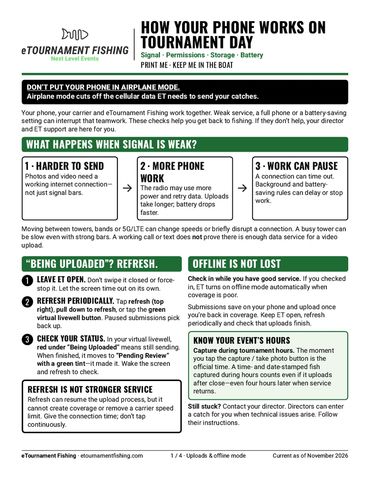
Set up before you launch
Update, check permissions, test in the practice event, then check in with good service.
ONE SIMPLE CHECKLIST FOR EVERY PHONE
• Accept ALL permissions when the app or phone asks. ET needs Always location, Precise Location, camera and microphone. The microphone is needed for the release video.
• Follow the permission warning. If a permission is missing, ET flashes a warning telling you to give permissions. Follow it before fishing.
• Update before the event. Update your phone and the ET app ahead of tournament day.
• Try the practice event. Run test submissions so you know what to expect.
• Check in with good service. This lets ET switch to offline mode automatically when coverage is poor.
• Charge fully and bring a power bank. Protect your phone from heat and cold.
• Make room for your catches. Check that your phone has plenty of free space. Delete old videos you don't need—not pending tournament photos or videos.
AFTER YOU SUBMIT: LEAVE ET OPEN
Don't swipe it closed. Let the screen time out on its own. Wake it and refresh periodically. Check that your catch moves from Being Uploaded to Pending Review.
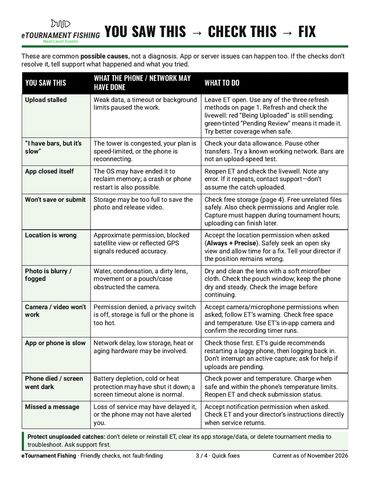
You saw this → check this → fix
These are common possible causes, not a diagnosis. App or server issues can happen too. If the checks don't resolve it, tell support what happened and what you tried.
UPLOAD STALLED
What the phone / network may have done: Weak data, a timeout or background limits paused the work.
What to do: Leave ET open. Use any of the three refresh methods above. Refresh and check the livewell: red "Being Uploaded" is still sending; green-tinted "Pending Review" means it made it. Try better coverage when safe.
"I HAVE BARS, BUT IT'S SLOW"
What the phone / network may have done: The tower is congested, your plan is speed-limited, or the phone is reconnecting.
What to do: Check your data allowance. Pause other transfers. Try a known working network. Bars are not an upload-speed test.
APP CLOSED ITSELF
What the phone / network may have done: The OS may have ended it to reclaim memory; a crash or phone restart is also possible.
What to do: Reopen ET and check the livewell. Note any error. If it repeats, contact support—don't assume the catch uploaded.
WON'T SAVE OR SUBMIT
What the phone / network may have done: Storage may be too full to save the photo and release video.
What to do: Check free storage (below). Free unrelated files safely. Also check permissions and Angler role. Capture must happen during tournament hours; uploading can finish later.
LOCATION IS WRONG
What the phone / network may have done: Approximate permission, blocked satellite view or reflected GPS signals reduced accuracy.
What to do: Accept the location permission when asked (Always + Precise). Safely seek an open sky view and allow time for a fix. Tell your director if the position remains wrong.
PHOTO IS BLURRY / FOGGED
What the phone / network may have done: Water, condensation, a dirty lens, movement or a pouch/case obstructed the camera.
What to do: Dry and clean the lens with a soft microfiber cloth. Check the pouch window; keep the phone dry and steady. Check the image before continuing.
CAMERA / VIDEO WON'T WORK
What the phone / network may have done: Permission denied, a privacy switch is off, storage is full or the phone is too hot.
What to do: Accept camera/microphone permissions when asked; follow ET's warning. Check free space and temperature. Use ET's in-app camera and confirm the recording timer runs.
APP OR PHONE IS SLOW
What the phone / network may have done: Network delay, low storage, heat or aging hardware may be involved.
What to do: Check those first. ET's guide recommends restarting a laggy phone, then logging back in. Don't interrupt an active capture; ask for help if uploads are pending.
PHONE DIED / SCREEN WENT DARK
What the phone / network may have done: Battery depletion, cold or heat protection may have shut it down; a screen timeout alone is normal.
What to do: Check power and temperature. Charge when safe and within the phone's temperature limits. Reopen ET and check submission status.
MISSED A MESSAGE
What the phone / network may have done: Loss of service may have delayed it, or the phone may not have alerted you.
What to do: Accept notification permission when asked. Check ET and your director's instructions directly when service returns.
Protect unuploaded catches: don't delete or reinstall ET, clear its app storage/data, or delete tournament media to troubleshoot. Ask support first.
Power and storage
Keep your phone charged and storage available before tournament day.
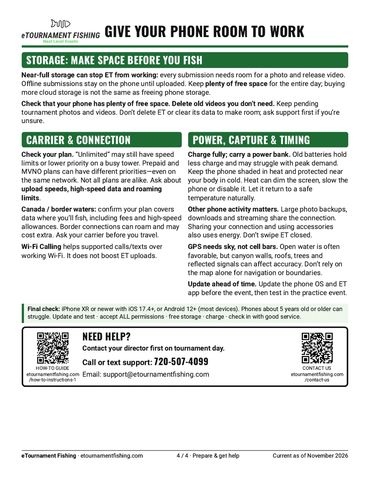
Give your phone room to work
STORAGE: MAKE SPACE BEFORE YOU FISH
Near-full storage can stop ET from working: every submission needs room for a photo and release video. Offline submissions stay on the phone until uploaded. Keep plenty of free space for the entire day; buying more cloud storage is not the same as freeing phone storage.
Check that your phone has plenty of free space. Delete old videos you don't need. Keep pending tournament photos and videos. Don't delete ET or clear its data to make room; ask support first if you're unsure.
CARRIER & CONNECTION
Check your plan. "Unlimited" may still have speed limits or lower priority on a busy tower. Prepaid and MVNO plans can have different priorities—even on the same network. Not all plans are alike. Ask about upload speeds, high-speed data and roaming limits.
Canada / border waters: confirm your plan covers data where you'll fish, including fees and high-speed allowances. Border connections can roam and may cost extra. Ask your carrier before you travel.
Wi-Fi Calling helps supported calls/texts over working Wi-Fi. It does not boost ET uploads.
POWER, CAPTURE & TIMING
Charge fully; carry a power bank. Old batteries hold less charge and may struggle with peak demand. Keep the phone shaded in heat and protected near your body in cold. Heat can dim the screen, slow the phone or disable it. Let it return to a safe temperature naturally.
Other phone activity matters. Large photo backups, downloads and streaming share the connection. Sharing your connection and using accessories also uses energy. Don't swipe ET closed.
GPS needs sky, not cell bars. Open water is often favorable, but canyon walls, roofs, trees and reflected signals can affect accuracy. Don't rely on the map alone for navigation or boundaries.
Update ahead of time. Update the phone OS and ET app before the event, then test in the practice event.
FINAL CHECK
iPhone XR or newer with iOS 17.4+, or Android 12+ (most devices). Phones about 5 years old or older can struggle. Update and test · accept ALL permissions · free storage · charge · check in with good service.
Need help?
Contact your director first on tournament day.
Call or text support: 720-507-4099
Email: support@etournamentfishing.com
How-To Guide: https://etournamentfishing.com/how-to-instructions-1
Contact us: https://etournamentfishing.com/contact-us
eTournament Fishing, LLC · Built for tournament fishing. Built by tournament directors. · Guide current as of November 2026.
eTournament Fishing, LLC
This website uses cookies.
We use cookies to analyze website traffic and optimize your website experience. By accepting our use of cookies, your data will be aggregated with all other user data.